
Spam messages with malicious links are increasingly being sent via SMS or WhatsApp. How do you block such messages and ensure they do not install harmful software on your phone unnoticed? Spam messages are less intrusive than spam calls because they are easy to ignore. However, they are no less dangerous. Spam messages are often more dangerous than spam calls because they often contain fraudulent links.
What makes this type of message particularly treacherous: they increasingly look "normal". Think of package delivery, a bank notification, a payment request, or a WhatsApp message that supposedly "accidentally" ended up with you. Precisely because it looks ordinary, people click faster – and that's what scammers are counting on.
Many of these messages are actually smishing: phishing via SMS/WhatsApp.
Therefore, blocking spam is not just about one button ("block number"), but about a combination: recognizing, not interacting, blocking, reporting, and turning on filters so that suspicious messages are less likely to appear among your normal conversations.
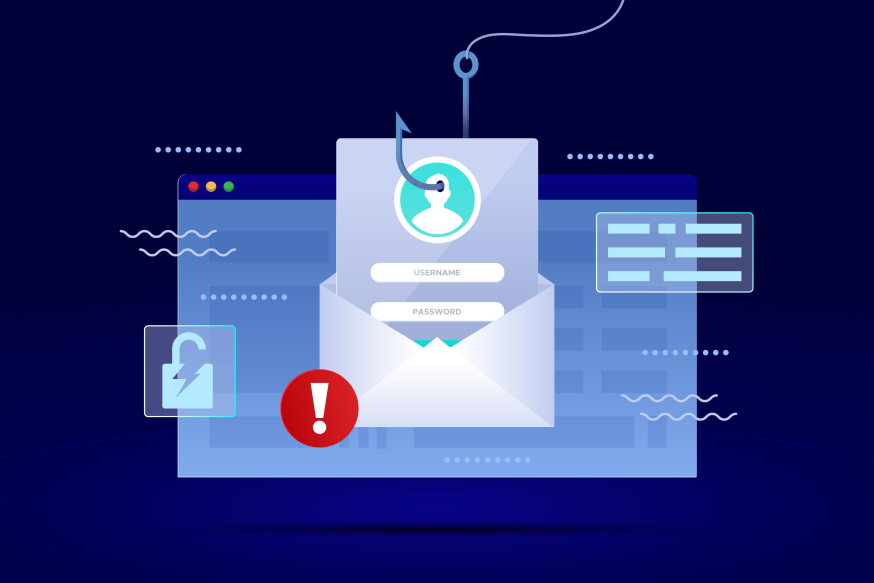
Smishing plays on urgency and trust: a "normal" message tries to lure you to a fake login or payment page.
Smishing is a variant of phishing that you also see in other forms, such as vishing (via phone) and even quishing (via QR codes). It is useful to be sharp on those terms as well: Protect yourself against mobile attacks: vishing and smishing and The evolution of phishing: vishing & quishing.
The good news is that there are many ways to block these messages in the form of smishing and that you can easily protect your phone against malware, viruses, and scammers.
Blocking spam? First, these 4 safety rules
Before you start blocking or turning on notifications/filters, this is the most important: make sure spam does not "work" at all. These four rules prevent one wrong tap from causing immediate damage:
- Never click on links in suspicious messages.
- Do not download attachments that you do not expect.
- Never enter passwords, PIN codes, bank details, or iDIN/DigiD information via a link from an SMS/WhatsApp.
- Unsure? Then open the official app/website (bank, delivery service, government) yourself and check there.
Have you got this sharp? Then you can really tackle spam blocking effectively with settings like blocking the sender, reporting spam, turning on filters for iPhone, Android, and WhatsApp, and (where necessary) extra security.
If you haven't got it sharp yet and want extra background on how smishing tricks work (and how to recognize them), read this article: Phishing via SMS – how to recognize smishing.
Make use of a VPN & Antivirus
The most obvious option is to use a VPN and Antivirus software. A VPN protects your online privacy and helps you surf the internet more safely (especially in public places and public Wi-Fi). Want to know more about what a VPN is, why you can use the internet more safely with a VPN, and how to use it? A clear explanation of what a VPN is can be found on the ExpressVPN website.
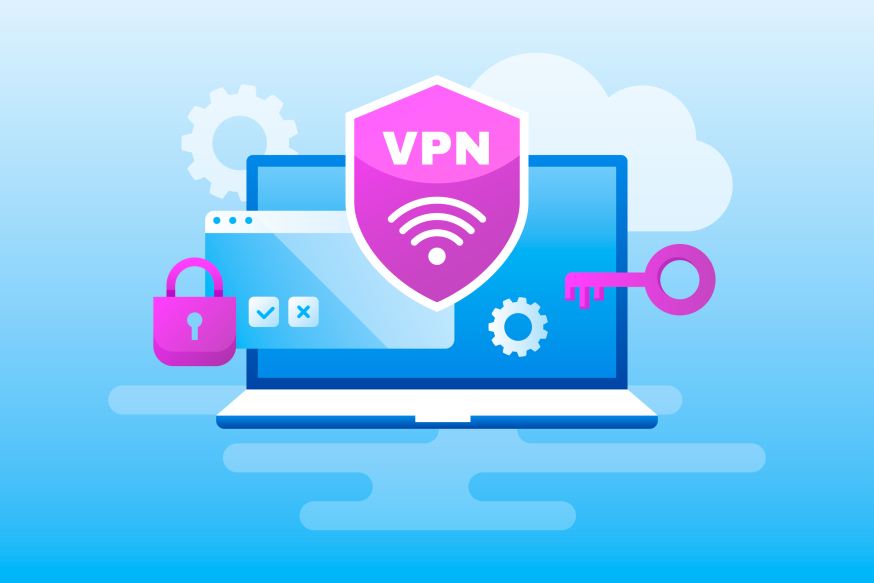
A VPN primarily protects your internet connection (for example, on public Wi-Fi). Think of it as extra privacy and security on the go – not as a spam filter for SMS or WhatsApp.
Antivirus software protects your phone against the unwanted installation of malware and viruses on your phone. There are various providers you can use for this. More background on the role of antivirus in modern security can be found in Cybersecurity in 2025: trends, challenges, and solutions.
Note: a VPN is especially useful for privacy and security on public Wi-Fi, but it is not a "spam filter" for SMS or WhatsApp. Antivirus/anti-malware can be useful as an extra safety net when you do click on something suspicious or download something – think of it as damage control, not as the method to stop spam. Are you afraid you have downloaded something? Then this can help: Quickly remove malware like this.
A simple basic step that many people forget when blocking spam: update your phone. iOS and Android updates contain security patches that make abuse more difficult.
Now for the most important part: the practical steps to block and report spam messages and phone numbers so that your inbox becomes quieter again.
Blocking spam messages
It is important not to interact with the sender of the message. So do not respond or click on links. If you click on this, malware can be installed or you may be redirected to untrusted websites.
If you respond to spam messages, your phone number will be forwarded to more scammers, and the chance of receiving even more spam messages increases.
Extra practical rule when blocking spam: do not respond with "STOP", "unsubscribe" or something similar if you do not 100% trust the sender. In cases of fraud, you may actually confirm that your number is active.
And one more that often goes wrong: do not "check" by calling back or replying. That is also interaction.
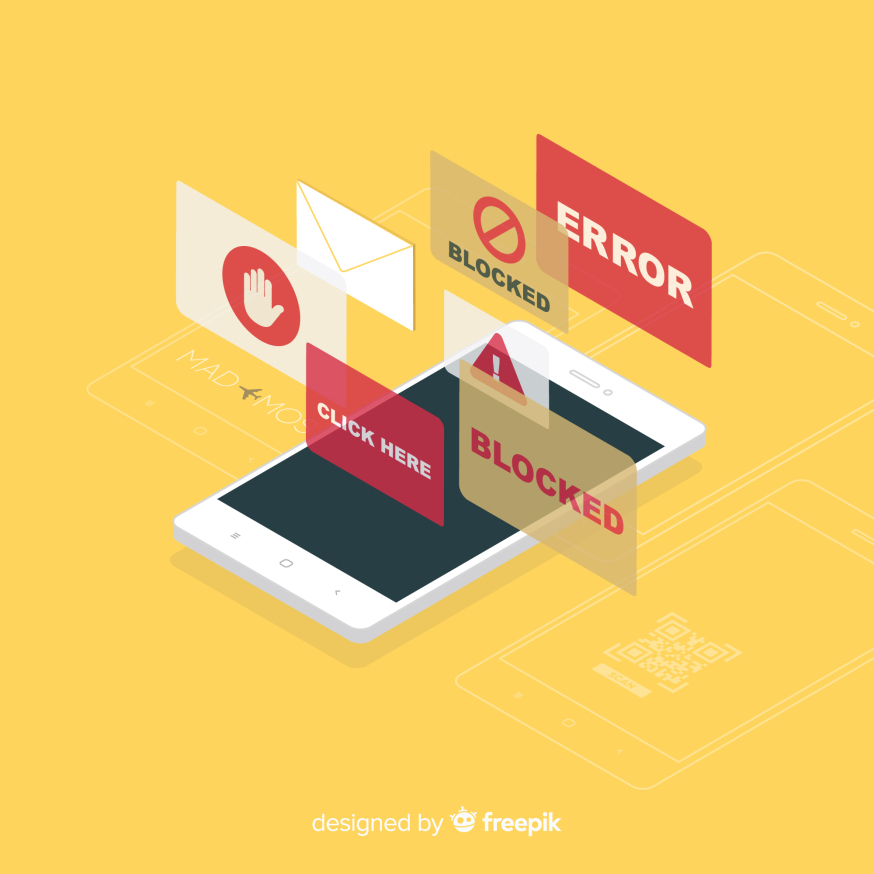
Spam messages often play on urgency ("click here", "error", "blocked"). Recognizing these messages, not responding, and immediately blocking or reporting prevents you from falling for such a trick.
Note: spam does not only come in 1-on-1. Scammers increasingly use group chats to appear more credible.
Blocking spam messages in group chats via SMS/RCS (Google Messages)
Scammers increasingly use group chats in the SMS/Messages app (often via RCS chats, the modern successor to SMS, but sometimes in "SMS groups") to appear credible. You might see a "package message" or tracking code, and because you are in a group, it feels like it is "legit". That is why it is important not to respond, not to click, but to report the group directly as spam and then leave it. There are two routes for this:
Route 1: quickly report spam via ⋮ (three dots)
- Open the group chat.
- Tap on ⋮ in the top right corner.
- Tap on Report spam.
- Confirm in the pop-up with Yes.
What happens next may differ by device/version: you will at least receive fewer/no notifications from that chat. Sometimes it is also separated (but do not count on that 100%):
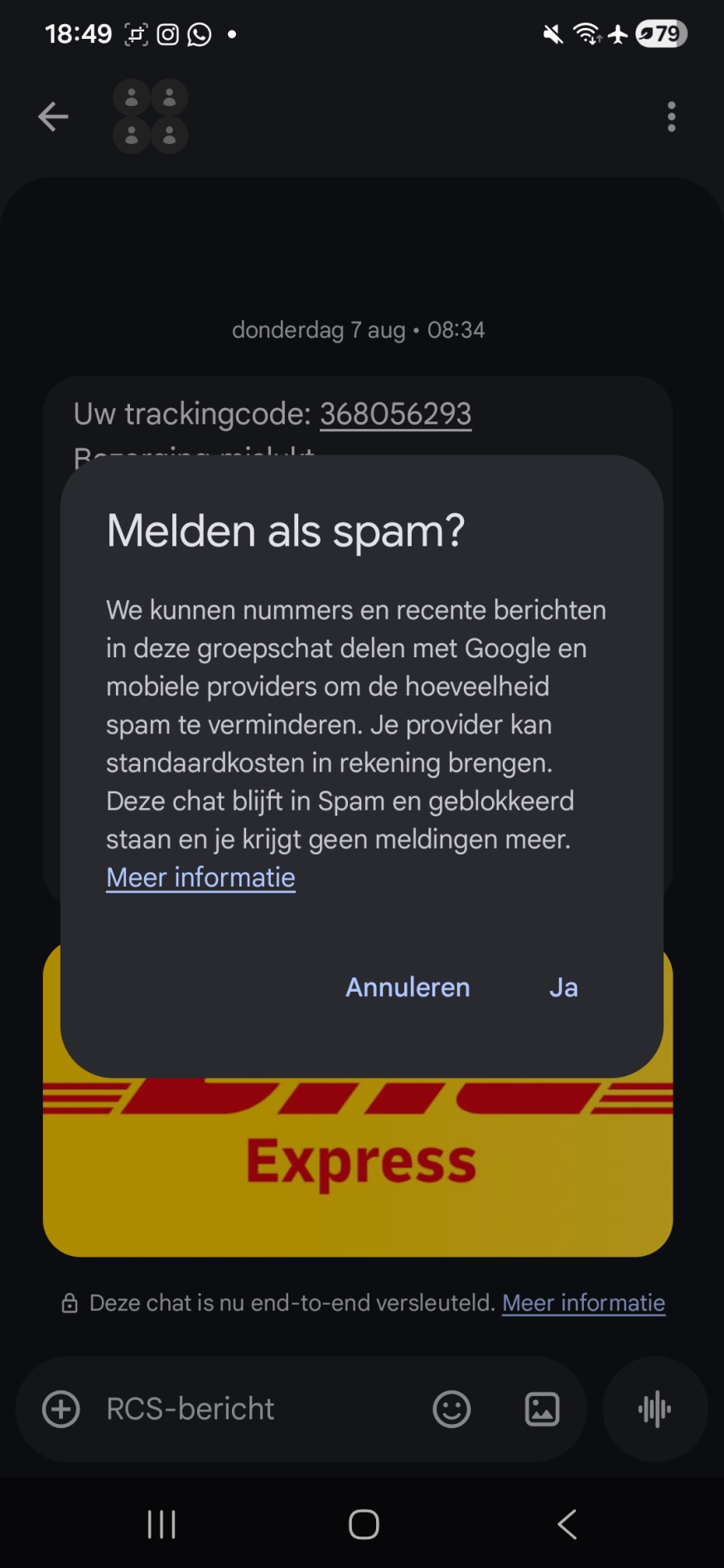
Via the menu (⋮) in the group chat, you can report the entire chat as spam at once. You will then see a confirmation ("Report as spam?"), click on 'Yes' to report the group chat as spam.
You can undo the spam report by clicking on 'not spam' if it turns out to be legitimate. However, it is important that if it is indeed spam, you still leave the group manually after reporting the spam. That brings us to route 2:
Route 2: via Group Information (you can also leave the group here)
Sometimes you want to leave the group immediately after reporting spam, or you only see the "leave" option in the group screen.
- Open the group chat and go to Group Information (e.g., via the group name/icon or via the menu).
- First choose Report spam, then you will see the same pop-up as in route 1.
- Then choose Leave group (so that you are really out).
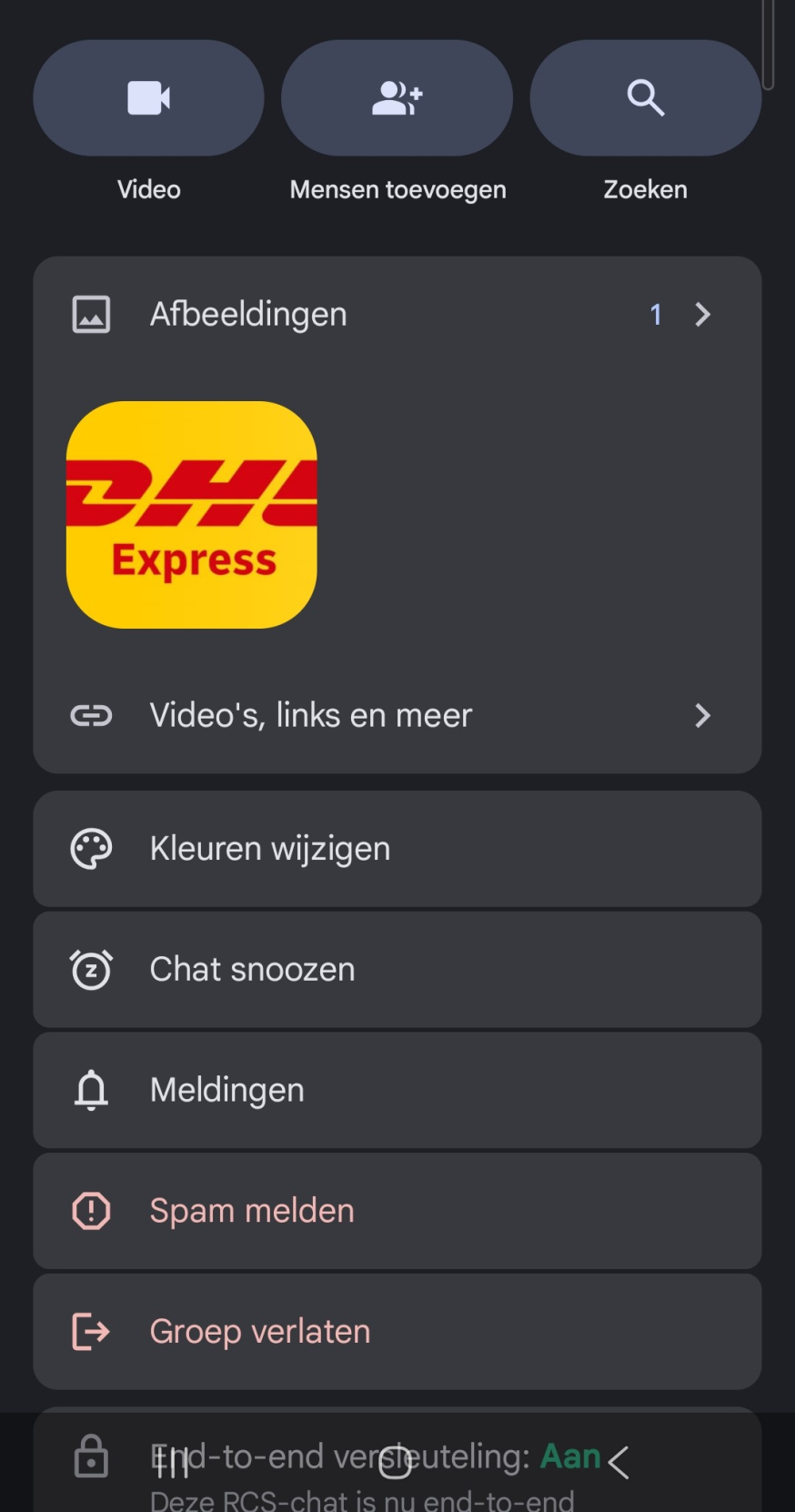
In the Group Information menu, you will often find extra options, such as "Leave group" next to "Report spam". Handy if you want to step out of the group immediately after reporting.
Tip: then delete the conversation from your list (just to tidy up), so you do not accidentally click on a link in that chat later.
Have you reported and left the group? Then you can also block individual senders and phone numbers, so you receive messages from the same number less frequently.
Block the phone number
You can block numbers from which unsolicited messages are sent. The downside of this approach is that spammers usually change their phone number. This way, even if you block the number, you can still receive messages from the same spammer with a different number. Blocking a phone number on your iPhone or Android device works as follows:
Block phone number on iPhone
On an iPhone, open the SMS message you received. Tap on the phone number at the top of the screen and then tap on the Info button. Select Block this caller in the next screen and then tap Block Contact to confirm.
Tip (iPhone): screen/filter unknown senders. This way, unknowns will no longer appear among your normal conversations (and the chance is smaller that you accidentally tap on a link).
- Tap in Messages on Filters → Manage filtering (names may vary slightly by iOS/language) and turn on 'Screen/filter unknown senders'.
- Also check the folder/section 'Spam' or 'unknown senders': suspicious messages may automatically end up there.
- Do you see 'Report Junk' in iMessage? Use that option and then delete the conversation.
Want the official instructions and steps? Apple explains this in View and restore spam messages on your iPhone.
Block phone number on Android
On an Android phone, open the text in SMS messages and tap on the three dots (⋮) icon in the top right corner. The steps then vary based on your phone and OS version. Select the option 'Block number' or 'block contact' or select Details and then tap 'Block and report spam'. In some cases, you can click on 'block and report spam' directly after the three dots icon.
Preferably choose 'Block and report spam': then the conversation often immediately disappears to 'Spam and blocked' and you help the filter recognize better. There you also have a menu to share the recent messages from the sender with Google and mobile providers to limit spam:
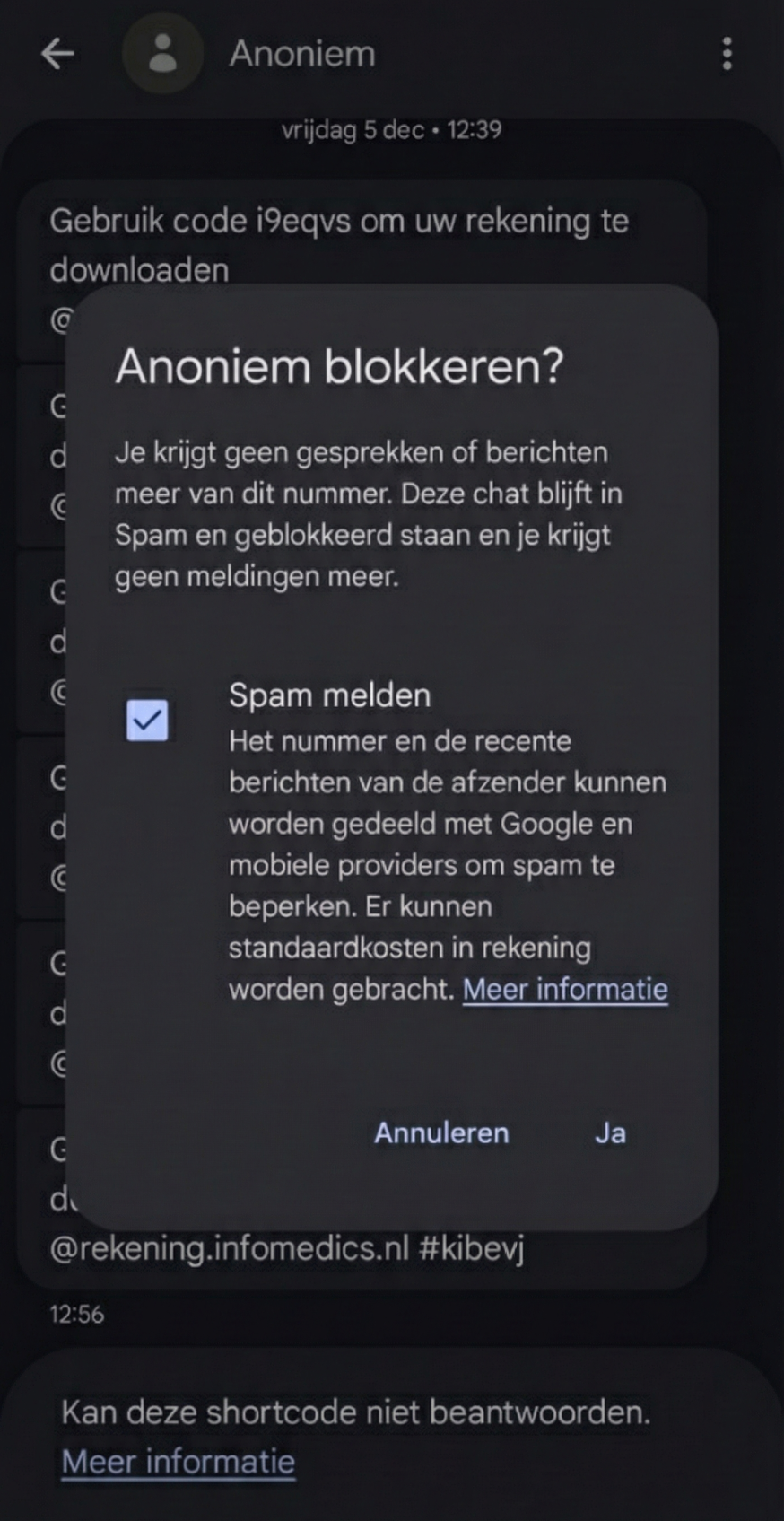
This pop-up screen appears after you choose 'Block and report spam'. Leave 'Report spam' checked and tap Yes to block the number and (optionally) send recent messages for spam detection.
Want the official steps? Google explains here how 'Blocking and reporting spam in Google Messages' works, although it is a bit less explicit.
Another option on Android phones is to click on the info button next to the number and/or contact. Then click on the icon with the three dots (⋮) at the bottom right or top left and click on block contact:
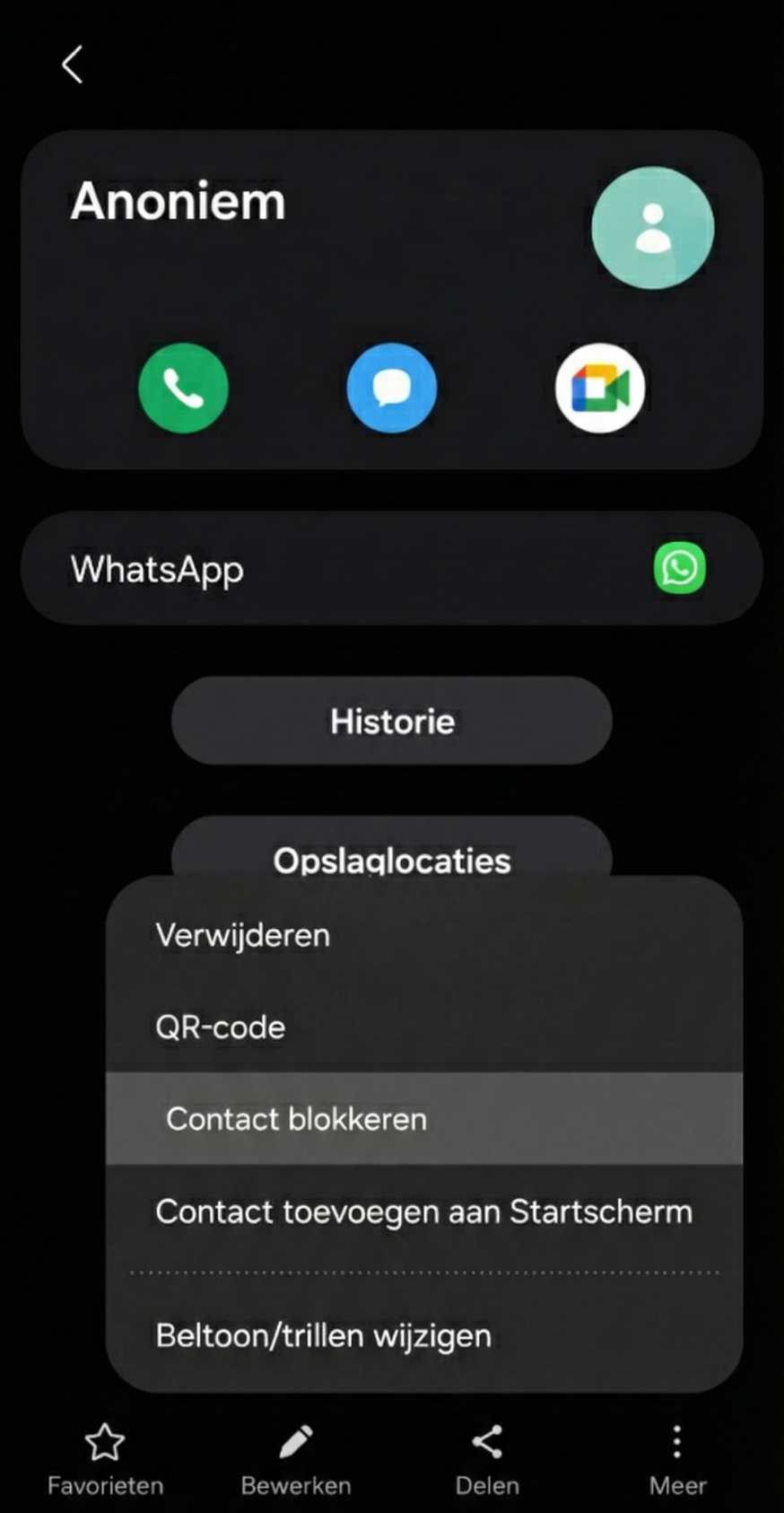
You can also block a sender via the contact card: open the card via the name or number and choose the option Block contact via the menu. This works even if you are not in the chat menu.
Then it will say: "block contact? You will no longer receive calls or messages from this contact." Click on block. The spam will not be reported then, but you will not receive spam or contact attempts anymore.
In addition to phone numbers and groups via SMS/RCS, you can of course also block and report in WhatsApp – there are even extra anti-spam settings in there.
Block phone number on WhatsApp
Open the WhatsApp app on your phone, go to settings and then click on 'Privacy', go to 'contacts' and then click on 'blocked contacts'. Then tap on the 👤+ icon and select the contact and/or number to block that person.
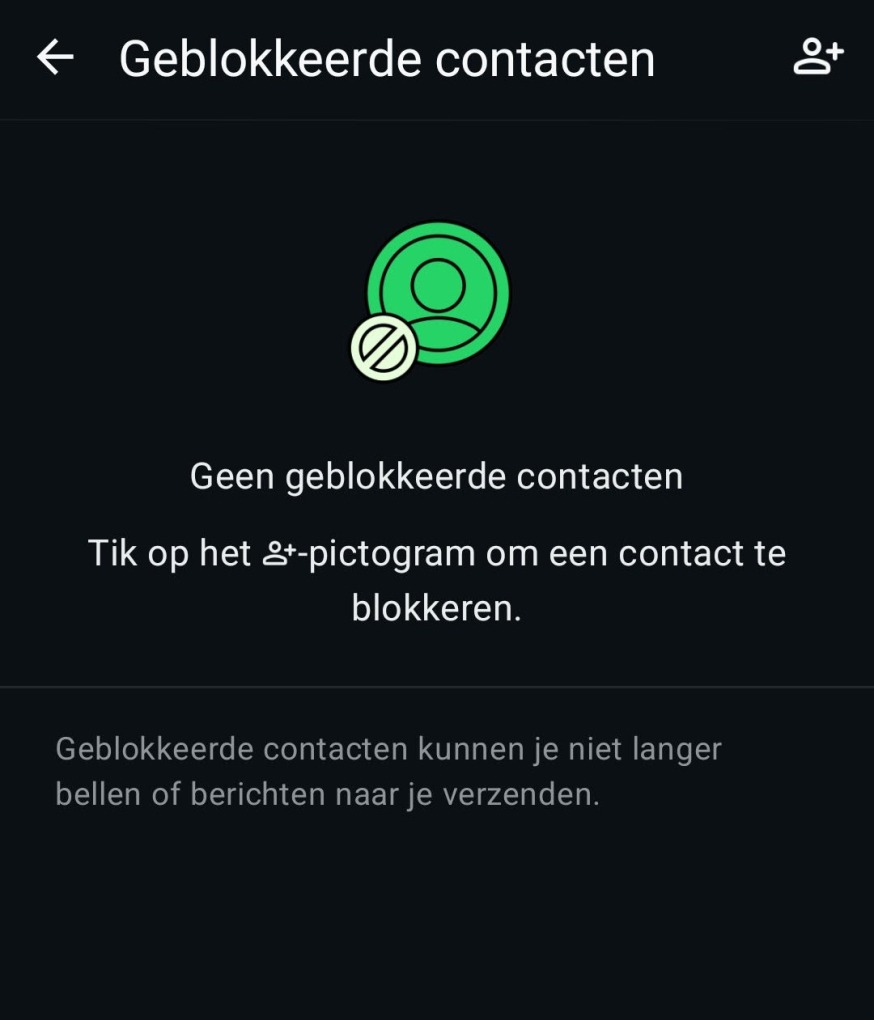
In WhatsApp, you add a block via Blocked contacts. Tap the 👤+ icon in the top right to add a number/contact to your block list.
There is also an alternative way to block via WhatsApp, this is faster and clearer than through settings and menus: open the chat → press the three vertical dots (⋮) → press 'more' → press block. Do you also see "Report" or "Report Spam", use that immediately. This reporting often applies to the last five messages that are then reported to WhatsApp.
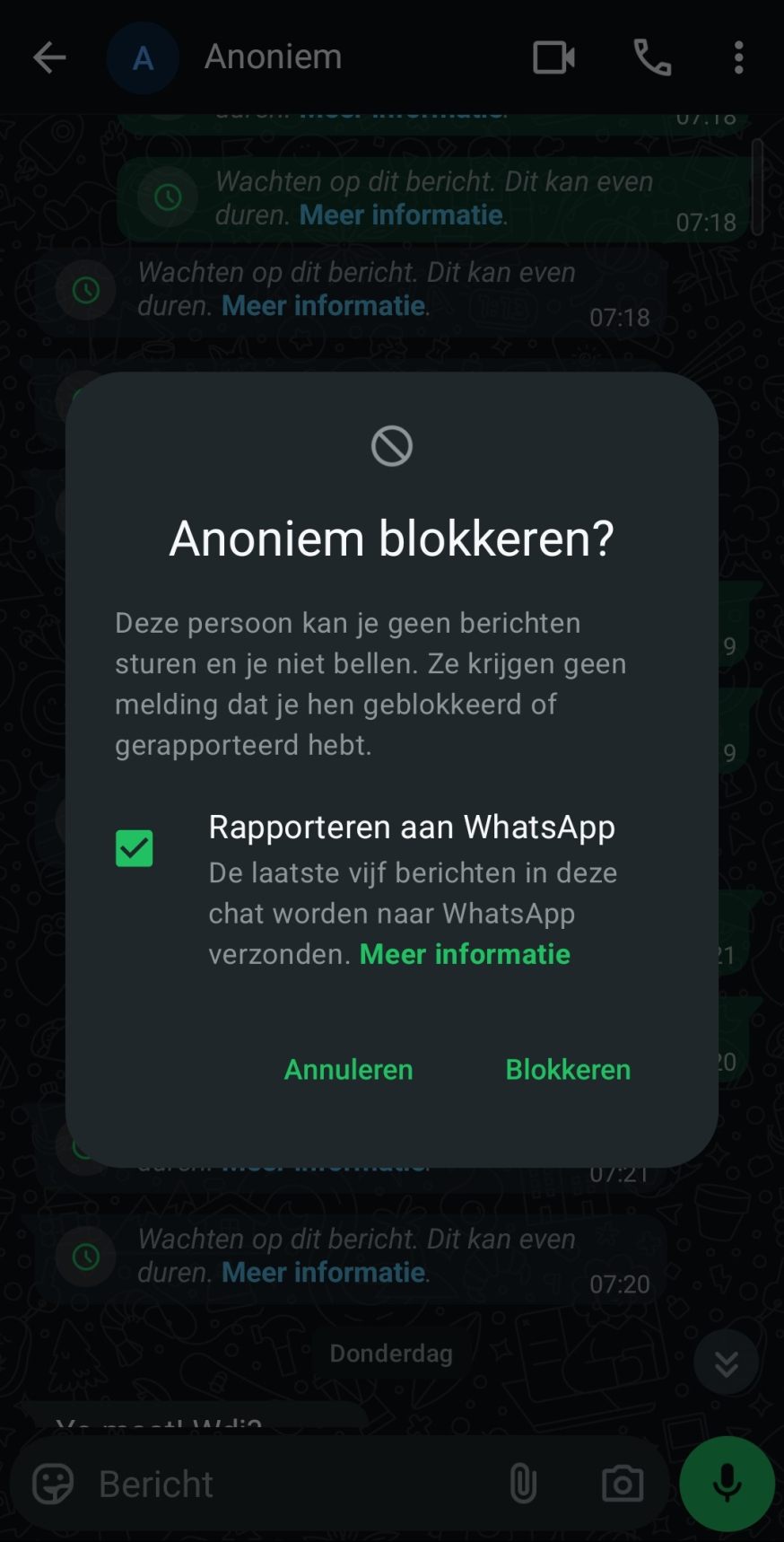
When blocking within the chat, you can also report immediately: with 'Report to WhatsApp' you send the latest messages along, so WhatsApp can intervene faster. Then confirm with Block.
Do you want to tighten up your WhatsApp settings right away (privacy, notifications, groups, practical shortcuts, etc.)? Then this overview helps: With these tips, you become a WhatsApp pro.
Extra WhatsApp tip against spam
Go to Settings → Privacy → Groups and set 'Who can add me to groups' to 'My contacts' (or 'My contacts, except…'). This prevents a lot of group spam and unknown invitations. You can also impose these restrictions on who can see your last seen or profile picture.
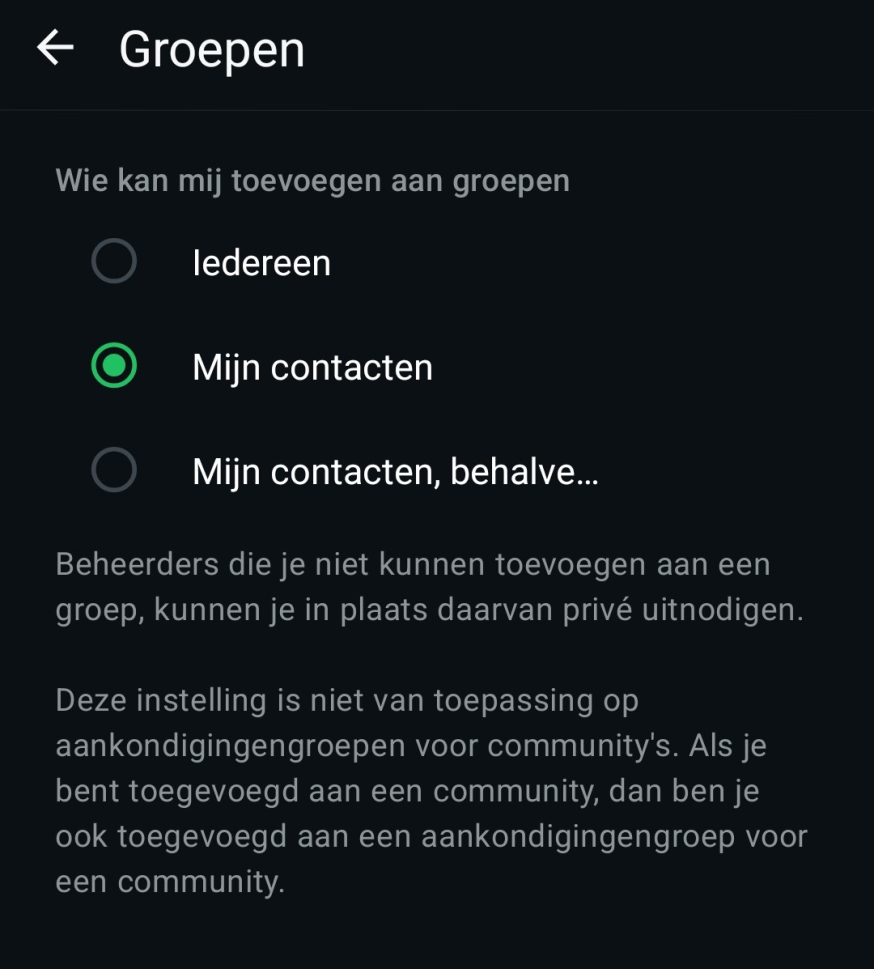
Prevent group spam by limiting group invitations: set Who can add me to groups to My contacts (or My contacts, except…).
Tip: then delete the conversation, so you do not accidentally click on the link that is in the chat later.
If you want to check the official WhatsApp explanation about blocking, click here: WhatsApp: Block and report someone.
Why blocking sometimes "does not work":
- Spammers change numbers
- Sometimes they use sender names or "spoofing" (it looks like a known company, but it is not)
That is why blocking spam works best when you combine blocking with reporting/filters (see below).
Disabling spam messages (via reporting/filters)
On an Android phone, you can sometimes directly disable all possible spam messages via the Messages app from Google. Tap on the three dots icon in the top right corner of the app and select Settings > Spam protection and turn on the Spam protection switch. Your phone will now warn you if an incoming message is suspected of spam.
Can't figure it out? In Google Messages, it is usually: Open messages → click on your own profile picture or ⋮ → Message settings → Protection and security → Spam protection or Security against spam → make sure this is checked or enabled. (names may vary slightly by device/Android version).
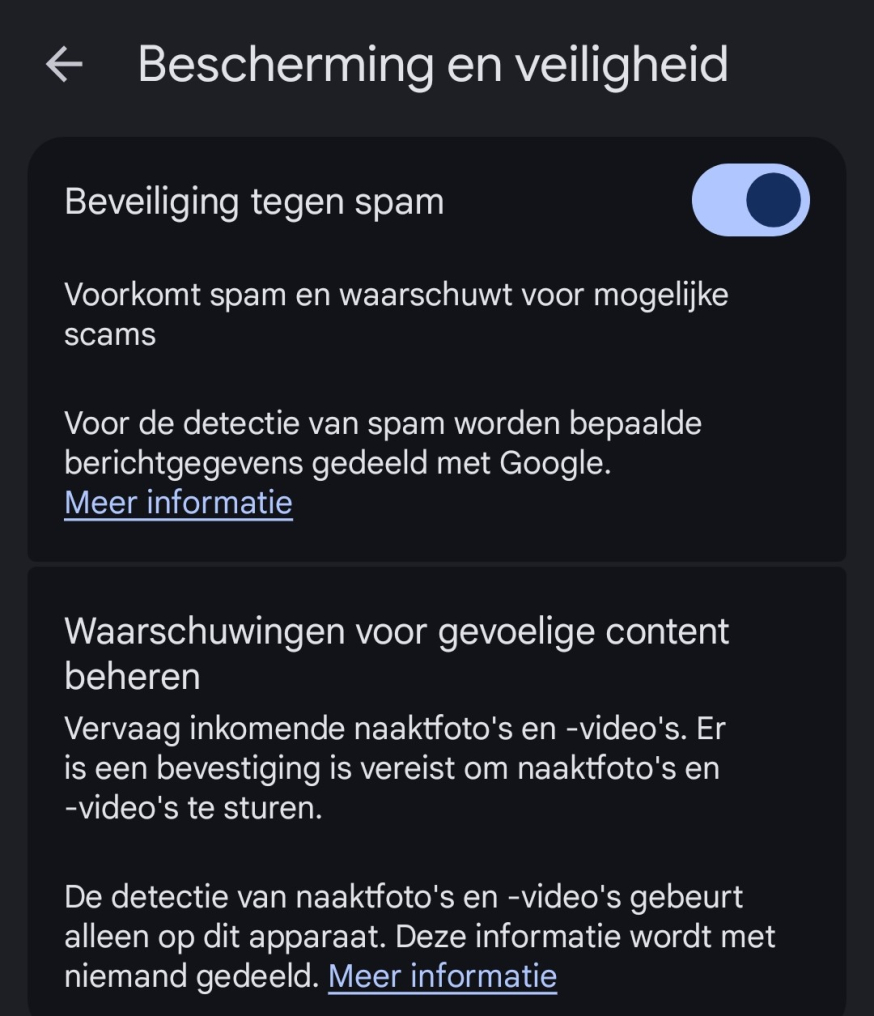
Here in Google messages, you turn on spam protection. If this is active, the Messages app can give warnings for suspicious messages and possible scams.
Is this already on? Great – check it anyway, because factory settings can differ by device/Android version and this is not always automatically activated.
In iOS, you can filter messages from unknown senders into a separate folder in the Messages app. Activate it via Settings > Messages > Filter unknown senders.
This is one of the biggest advantages when blocking spam in practice, as you not only stop individual numbers but also use pattern recognition/filters.
This is how it works in practice:
- Android (Google Messages): spam recognition can automatically move or mark suspicious messages to spam.
- iPhone (Filter unknown senders): spam does not always disappear, but it is separated from your "normal" inbox, making it less likely that you will mis-click.
Another useful habit: set notifications for unknown senders to be less prominent (or off) if you notice that you are often tempted to look immediately. That is not magic, but it helps reduce reflex behavior.
Secure your phone
Even with the greatest care, malicious messages can be missed or mistaken for legitimate messages. This does not have to be a problem if your phone protects you with software designed to protect you against malware, scammers, and viruses. There are simple ways to protect your phone. Here are a few tips.
There are various apps in the App Store or Google Play Store to protect you from unwanted messages and calls. However, experiences vary and prices vary significantly. A quick search often offers multiple choices, but read the reviews carefully.
Do you want to tighten your basic mobile security right away? Then this is a nice checklist: 10 mobile security tips for your smartphone.
We always recommend applying a combination of the above methods to minimize unwanted messages!
Finally (for extra security)
- Enable two-step verification (2FA) on important accounts where possible.
- Install apps preferably only from official stores (App Store/Google Play).
- Make backups so you can recover faster in case of trouble.
And: what if you did click?
Then briefly a few practical steps you can take:
- Close the page immediately and do not download anything.
- Have you entered any information somewhere? Change your password immediately (and enable 2FA).
- Check bank/transfers if it was about payment fraud.
- Check if there are any unknown apps/profiles or "management" rights added.
Acting quickly is more important here than "panic". If you doubt whether you are dealing with phishing (via SMS/WhatsApp/QR/phone), you can check this page from the Dutch government: What can I do against phishing?
In summary: blocking spam works best if you (1) turn on filters, (2) block and report senders, (3) do not interact with suspicious messages, and (4) keep your basic security in order.